

QuickBooks Integration with SeevCash: Sync Invoices and Payments

SeevCash QuickBooks Integration: Sync Invoices and Payments
Connecting our platform with QuickBooks ties your invoicing and payment workflows together so invoices, settlements, fees, and statuses sync automatically. That means fewer manual entries, faster reconciliations, and cleaner reporting inside QuickBooks. Over 40% of workers say manual tasks eat at least a quarter of their week, so every automated sync matters. (smartsheet.com)
Manual invoice updates, duplicate entries, and a reconciliation pile that grows by the hour. If that sounds familiar, the cost is not just stress. It is delayed cash visibility and month-end crunch. McKinsey’s research shows a large share of finance work can be automated with today’s tools, and record-to-report steps are among the most automatable. We built our QuickBooks connector to cut the busywork so your team can focus on judgment calls, not keystrokes. (mckinsey.com)
What is our platform and why pair it with QuickBooks?
In one line, our platform issues invoices, tracks crypto and fiat payments, and syncs both to QuickBooks so your ledger stays accurate with less work. For small businesses and finance leads who already run QuickBooks, pairing our platform with QuickBooks Online removes manual copy-paste, standardizes fee handling, and reduces reconciliation cycles. Two outside forces make the case stronger. First, finance teams can automate a large portion of routine accounting activity, which cuts processing time and error exposure. Second, stablecoin use in real-world transactions keeps growing, so being able to record those flows correctly in QuickBooks is no longer nice to have. (mckinsey.com)
We started by asking a blunt question: what do small teams hate most about invoice-to-cash? Not the policy decisions or analysis. The tedium. Creating invoices in one system, recording on-chain payments in another, then reconciling fees and exchange rates by hand. McKinsey estimates that 42% of finance tasks can be fully automated and another 19% mostly automated. That is a big lever, and invoicing plus reconciliation is squarely in scope. (mckinsey.com)
Here is how the workflow lands in practice. You create an invoice. Your customer pays in USDC or by card. The receipt lands, fees are captured, and payout hits your bank. With the integration turned on, invoice status, payment amount, fees, and reference IDs map into QuickBooks automatically. You review and approve instead of retyping. That swap of “type” for “review” is where the time returns.
A quick analogy helps. Think of month-end as a relay race. When invoicing, payments, and reconciliation use different batons, drops are common. A single pipeline means the baton stays in one hand from invoice creation to ledger posting. Fewer handoffs, fewer drops.
Our view is simple. Crypto payments should be as easy to account for as card payments in QuickBooks. Visa tracks stablecoin activity across multiple networks publicly, and independent analyses show stablecoin volumes now make up a large slice of overall crypto transactions. If your customers pay with digital dollars, your accounting system needs that context. The integration supplies it so you can sync crypto payments to QuickBooks alongside card and bank receipts. (corporate.visa.com)
If you are just getting started with stable-value currencies and want a primer, bookmark two guides our team recommends reading before setup: stablecoins for business and the complete guide to accepting crypto and stablecoin payments. Both outline when on-chain receipts make sense for small teams and how to keep records clean.
What concrete benefits do you get from connecting the two?
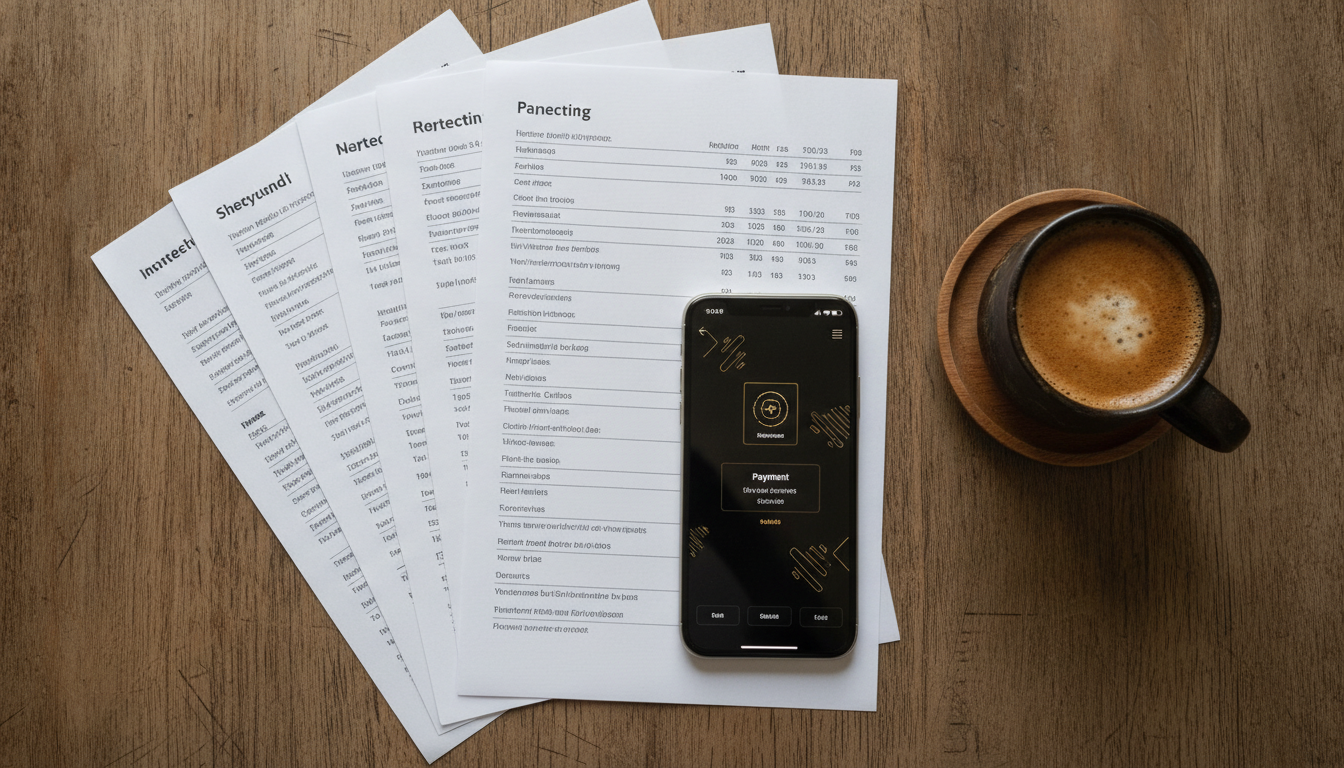
The short answer is time back, fewer errors, and cleaner cash visibility. Finance research ties these together: when you automate steps in record-to-report and order-to-cash, you cut touches that introduce miskeys or mismatches and you accelerate the handoffs that slow month close. Businesses also face rising expectations for faster settlement and instant-pay experiences, which increases transaction volume. Automation keeps pace when headcount cannot. (mckinsey.com)
Time savings through automated processes Automation does not remove judgment. It removes drudgery. McKinsey’s finance studies show material portions of journal prep, data collection, and reconciliation can be fully or mostly automated, and organizations that do this cut processing time by around half in targeted workflows. Workers themselves agree that automating data entry and collection reduces wasted time. Replace “key each fee” with “review mapped fee accounts,” and hours shrink. (mckinsey.com)
Reduction in data entry errors Manual journal entries are a persistent source of errors and cost, according to APQC benchmarking. Public-sector data-quality guidance also treats error rates above 1% as a red flag that demands correction, which hints at how quickly small keystroke mistakes can compound when volumes rise. By syncing invoice data and payment details, you shorten the path for numbers to reach your ledger, and that tends to lower error incidence. (apqc.org)
Improved cash flow visibility and reporting A ledger that updates with cleared payments, processor fees, and payout timing produces more reliable cash forecasts. QuickBooks already shines at bank feeds and card imports, and its app ecosystem connects to major processors like Stripe, PayPal, and Square. When your invoice receipts and those processor records point to the same transactions, reports square up faster and exceptions stand out. (quickbooks.intuit.com)
Comparison: manual vs automated invoice and payment handling
| Process Step | Manual Method Time | Automated Method Time | Error Rate |
|---|---|---|---|
| Create invoice and customer record | 5-7 minutes | 1-2 minutes | Manual: up to 1%+ if rekeyed customer details are inconsistent; Automated: far lower due to reuse of master data |
| Send invoice and reminders | 3-5 minutes per cycle | Seconds (scheduled) | Manual: reminder variability creates missed follow-ups; Automated: consistent cadence |
| Record payment and fees | 4-6 minutes | Under 1 minute (mapped) | Manual: fee miskeys common per APQC’s manual-entry warnings; Automated: fees mapped once to correct GL accounts |
| Match bank deposit | 3-5 minutes | Under 1 minute | Manual: deposit bundling causes confusion; Automated: reference IDs link payout to invoices |
| Update invoice status | 1-2 minutes | Instant | Manual: stale statuses skew A/R aging; Automated: statuses reflect actual receipts |
| Reconciliation review | 10-15 minutes per batch | 3-5 minutes | Manual: high touch; Automated: exception-based review only |
Estimates reflect typical small-business workflows and the automatable share of finance tasks reported by McKinsey, plus APQC’s guidance on manual journal entry risks and public guidance on acceptable error thresholds. Your numbers will vary by volume and complexity. (mckinsey.com)
One more payoff that matters right now: the ability to sync crypto payments to QuickBooks. Stable-value receipts, like USDC, can land daily and in small amounts. Automating the categorization of those receipts, the associated network fees, and the conversion steps removes avoidable friction that would otherwise slow your close and muddy cash balances. Visa’s dashboard tracking multi-chain stablecoin activity shows why preparing for this flow is smart, not speculative. (corporate.visa.com)
Bridge to setup So the “why” is clear. The next question is “how” without breaking your current books or spending a weekend on configuration.
How do you set up the integration without drama?
Here is the short version first. Confirm admin permissions in QuickBooks. Review your chart of accounts and item mappings. Connect the app from the QuickBooks Apps tab or from our settings page. Authorize the data scope. Map your revenue, fee, and payout accounts. Run a test invoice and test payment, then review what posts to QuickBooks before turning on any bulk sync. Intuit’s own help notes that only company admins can connect and manage apps, and the Apps view will list active connections for audit. That is your safety net. (quickbooks.intuit.com)
Pre-requisites for a smooth start Check access and environment. You need QuickBooks Online company admin rights. If an external accountant manages QBO for you, align on who will press “connect,” because Intuit routes app permissions through the Admin model. Confirm your bank feeds are active and clean to avoid confusing banking rules with invoice-payment sync. QuickBooks documents three connection types for banks and explains how to connect feeds, and this matters because payout matching relies on a working feed. (plugin-qbo.intuit.com)
Decide what should map where. List the GL accounts for revenue, discounts, processing fees, realized gains or losses, and undeposited funds. If you accept card, bank transfer, and stablecoin receipts, create separate clearing accounts for clarity. Chase and Bank of America publish guidance for QuickBooks users that reinforces disciplined account separation, and QuickBooks itself encourages separate bookkeeping accounts for each data set. It speeds reconciliation and audits. (chase.com)
Step-by-step connection
- From QuickBooks, open Apps and search for the connector you plan to use. Confirm the listing is current and supported. Intuit’s App Center and partner program documents outline a review process and annual checks for listed apps.
- Click Connect. QuickBooks will prompt you to authorize specific data scopes. Only authorize what you need. Intuit’s data sharing policy explains how third-party apps receive data you approve.
- In the integration’s settings, select which QuickBooks company to link if you manage multiple.
- Map items and accounts. Pick default revenue accounts for products or services, choose fee accounts for different processors, and set tax settings if applicable.
- Run a dry run. Create a $1 test invoice. Process a $1 payment. Let the sync post, then inspect Sales, the clearing accounts, and the bank feed match. Repeat until the postings are exactly what you expect. (intuit.com)
Tips that reduce rework Start with a small date range for the first sync so you do not flood the ledger. Use QuickBooks’ Authorized Apps view to confirm the connection and to disconnect safely if you need to reset. If you accept PayPal, Stripe, or Square, review their QuickBooks resources before mapping, since each uses slightly different payout and fee behaviors, and each has an official QuickBooks help article or guide. That prep removes surprises in how deposits group and how refunds reverse. (plugin-qbo.intuit.com)
💡 Pro Tip Make sure both systems are current. Keeping our app and QuickBooks on the latest versions avoids obscure errors caused by stale API scopes or deprecated endpoints.
Crypto-specific mapping, made practical If you accept stablecoin payments, create a dedicated clearing account in QuickBooks to capture on-chain receipts before they land in fiat form. Record network fees to an expense account and map realized FX results if you convert. Visa’s public dashboard and Chainalysis reports show stablecoins’ growing role. Treat them as a normal tender type with clear GL rules, not a special case you handle ad hoc. (corporate.visa.com)
A quick “SeevCash accounting export setup” checklist you can copy
- Confirm company admin access in QuickBooks.
- Map revenue, discounts, processor fees, and undeposited funds.
- If you receive stablecoins, add a clearing account and fee account.
- Connect via the Apps tab and authorize scopes.
- Sync a narrow date window first and validate postings on a sample.
- Turn on reminders and auto-import only after sample validation.
If you want a deeper walkthrough of payments and invoicing basics before you connect, grab our guide on how to set up your account and send your first USDC invoice. It pairs well with our piece on a practical migration plan from bank wires to stablecoins.
What hurdles should you expect, and how do you fix them fast?
The most common integration snags are permissions, mismatched mappings, and noisy bank feeds. Start by verifying the basics. Only company admins can connect and manage apps. If fees or taxes land in the wrong accounts, revisit your mapping and test a single transaction until it posts cleanly. If payouts do not match, check your bank feed health and confirm whether your processor bundles transactions by day or by payout. QuickBooks documents connection types and offers a public list of supported banks, both of which affect reliability. (quickbooks.intuit.com)
Frequent hurdle: “It connected, but nothing is posting.” Look in QuickBooks’ Authorized Apps view to confirm the app has permission to write to your company file. If the app appears connected but lacks write scopes, reauthorize. Intuit’s help article shows where to find the list of approved apps inside your profile. Also confirm you selected the correct QuickBooks company if you manage more than one. (plugin-qbo.intuit.com)
Frequent hurdle: “Deposits show up but do not match invoices.” This is usually a payout bundling issue. Stripe and PayPal often group many individual payments into a single deposit. QuickBooks supports Stripe imports, and PayPal publishes its Accounting Sync guidance. Map a clearing account to catch individual sales, then let the bank feed deposit match to the clearing balance. That two-step keeps your A/R accurate and your bank reconciliation clean. (quickbooks.intuit.com)
Frequent hurdle: “Crypto receipts are messy.” Stablecoin receipts come with network fees and, if you convert, FX results. Treat on-chain receipts like any tender type. Create a clearing account. Record fees to a fee expense or cost of sales account. Record realized gains or losses on conversion. Visa’s stablecoin dashboard and Chainalysis reports document the scale of stablecoin flows, which is why this mapping deserves first-class treatment. (corporate.visa.com)
Frequent hurdle: “The app connected to the wrong revenue account.” Run a $1 test to see exactly which accounts a sale, a fee, and a payout touch. Adjust mapping and repeat until it is perfect. Then, and only then, open the date window. Workers surveyed say automation reduces wasted time and errors, but only if the first mile is configured carefully. (smartsheet.com)
Best practices that prevent rework over time
- Keep a change log. Any time you touch mapping, record who changed what and why.
- Reconcile clearing accounts weekly, not monthly. Exceptions are easier to spot in small batches.
- Review the Apps list quarterly. Remove unused connections. Intuit’s marketplace and developer policies impose app reviews and data-sharing boundaries. Staying current reduces risk. (static.developer.intuit.com)
With the snags mapped, it helps to see how the integration behaves in real operations.
Where does the integration pay off most in the real world?
The short answer is anywhere repeatable invoices and frequent payments exist. A remote design studio billing in USDC for sprint work can map stablecoin receipts to revenue and fees automatically, then convert and record FX with a single review step. A subscription startup taking card payments can post daily Stripe payouts, record fees, and reconcile without retyping. Both end up with cleaner A/R, fewer suspense balances, and faster month close. McKinsey’s analyses show finance teams that automate targeted steps can cut processing time by half. (mckinsey.com)
Before and after, a familiar story Before: an operations lead spent Friday afternoons keying card fees, updating invoice statuses, and guessing which payout matched which set of invoices. After: fees map once, statuses update on receipt, and payouts match by reference. Friday turns into ten minutes of exception review.
Another concrete example A small ecommerce seller using Square saw nightly deposits that did not tie to the day’s invoices. After connecting the Square integration and mapping fees and chargebacks, QuickBooks showed individual sales hitting a clearing account while the bank feed matched the single nightly deposit. Square, Stripe, and PayPal each publish resources on their QuickBooks connections, and using those patterns makes the first run far smoother. (squareup.com)
User sentiment in one line “As we’ve seen pattern after pattern, the goal is not fewer accountants. The goal is fewer keystrokes and better decisions.” My recommendation? Protect your team’s judgment time.
Common Questions About SeevCash QuickBooks Integration
What is SeevCash and how does it work with QuickBooks?
Our platform is a finance tool for issuing invoices, receiving crypto or fiat payments, and updating your accounting records. When connected to QuickBooks, it posts invoice details, payment confirmations, fees, and payout references to the right ledger accounts. The result is less manual entry, quicker reconciliations, and better cash visibility. If you need to sync crypto payments to QuickBooks Online specifically, the connector handles that automatically along with card and bank receipts. QuickBooks supports connecting and managing third-party apps through its Apps tab, with admins responsible for authorizing data scopes. (quickbooks.intuit.com)
How long does it take to set up the integration?
Most teams complete setup in under an hour, especially if your chart of accounts is tidy and you have admin access to QuickBooks. The process is straightforward: connect from the Apps tab, authorize, map revenue and fee accounts, then run a test invoice and test payment. QuickBooks shows your authorized applications in one place, which makes validation and resets easy if you need to adjust. (plugin-qbo.intuit.com)
What if I encounter issues during the integration?
Start with three checks. Confirm your user role is Company Admin in QuickBooks. Inspect the mapping for revenue, fees, and taxes by running a $1 test and reviewing where each posting lands. Verify that your bank feeds are connected and healthy, since payout matching depends on them. If you use Stripe, PayPal, or Square, consult their QuickBooks resources to understand how deposits bundle and how to match them. (plugin-qbo.intuit.com)
Can I use SeevCash without QuickBooks?
Yes. You can send invoices and receive payments without connecting to an accounting system. That said, connecting to QuickBooks increases accuracy and saves time because invoice statuses, fees, and payouts update your ledger automatically. Industry research from McKinsey and APQC points to the same conclusion: less manual entry means fewer errors and faster processing. (mckinsey.com)
Which apps and banks play nicely with QuickBooks?
Some readers ask broader questions before diving in, so here are concise, research-backed answers you can use immediately.
What apps can be integrated with QuickBooks? QuickBooks maintains an app marketplace where third-party tools connect for billing, commerce, payments, and more. Listings are reviewed, appear both on Apps.com and inside the Apps tab in QuickBooks Online, and require ongoing compliance. You will also find large integration catalogs at automation platforms like Zapier that connect to QuickBooks Online. (developers.intuit.com)
How to integrate QuickBooks? In QuickBooks, open Apps, search for the integration, then click Connect and authorize the data scopes. Only admins can add or manage app connections. After connection, you can see and manage authorized apps from your profile. Intuit’s developer documents and help center outline both user-facing and technical steps for connecting apps. (quickbooks.intuit.com)
What payment systems integrate with QuickBooks? Major processors publish QuickBooks resources. Stripe has an official help article on connecting and importing payouts and fees. PayPal maintains a PayPal Accounting Sync guide for QuickBooks. Square publishes help on syncing payroll and sales activity with QuickBooks and appears in Intuit resources describing the Square Connector. These are good templates for what a healthy integration looks like. (quickbooks.intuit.com)
Which bank is best for integrating QuickBooks? There is no single “best” bank. What matters is a stable bank feed and clear visibility into card and deposit activity. Intuit maintains public lists of banks that integrate with QuickBooks and explains connection types like direct, open, or standard. Large U.S. banks such as Chase, Wells Fargo, and Bank of America host public QuickBooks help pages and offer guidance on connecting accounts and importing transactions. Check Intuit’s bank feeds list and your bank’s QuickBooks page before you choose. (quickbooks.intuit.com)
Expert perspective you can trust
"As AI reshapes finance, organizations that invest in talent and technology today can turn disruption into a competitive advantage." — Tom Hood, EVP of Business Growth and Engagement at AICPA and CIMA
Security and compliance note Treat third-party connections as part of your control environment. Restrict admin access, review Authorized Apps quarterly, and reconcile clearing accounts on a schedule. For a deeper dive into our approach, see our write-up on security and compliance for your business.
Two closing resources for finance leads who want more control
- If your team manages payouts, approvals, and spend, our rundown of advanced controls for finance teams shows how to structure roles and limits.
- If you coordinate distributed contributors, our guide to setting up contractor payroll walks through policies and approvals that avoid last-minute scrambles.
What does this mean for you today?
- Do this today: connect a test company in QuickBooks, run a $1 invoice and a $1 payment through the integration, and verify which accounts every dollar and fee hits. It takes 15 minutes and will reveal exactly what you need to tweak before you go live.
- If adopting stablecoin receipts is on your roadmap, read our guides on migrating from wires to stablecoins and accepting crypto payments. They pair with the mapping tips above.
One last nudge. Many finance leaders worry that integrations are complex or fragile. The data suggests the opposite when you configure deliberately. McKinsey’s work on finance automation shows large swaths of record-to-report can be automated. APQC cautions that manual journal entries are a recurring source of errors. And QuickBooks itself invests heavily in an app ecosystem with admin controls you can audit. That is a good triangle for small teams. (mckinsey.com)
Ready to get your hours back and reduce reconciliation risk? Start your test connection now, validate the postings on one sample invoice and one sample payment, then flip the switch for go-live.